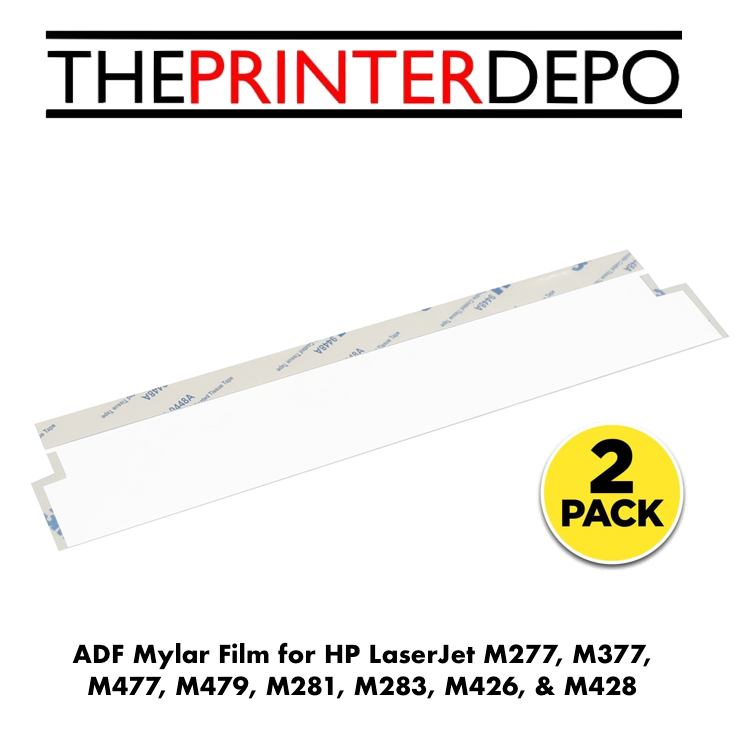
2 Pack • 2 Films Included ADF Service Part B3Q10-00060 Precision-Cut Film
Restore Smooth ADF Document Travel
2-Pack HP ADF Scanner-Glass Mylar Ramp Film
Two replacement films are included. Each precisely shaped Mylar guide installs beside the narrow ADF scanner glass to help originals travel smoothly through the automatic document feeder and maintain the correct paper path during copying and scanning.
Quantity: 2 Films Mylar Ramp Film ADF Scan Path Adhesive-Backed Wide Model Coverage
This listing is for a 2-pack — two Mylar films total.
Parts supplied: 2 × Mylar ramp films compatible with HP part number B3Q10-00060. The reusable Mylar holder/retainer is not included unless expressly pictured or stated. If the holder is cracked, distorted, or missing, the corresponding HP holder is B3Q10-40048.
Small Part, Important Job
What the Mylar ramp does
Guides Originals
Creates a smooth transition across the narrow ADF scan-glass area as each original travels through the feeder.
Supports Reliable Feeding
Replaces film that is torn, curled, wrinkled, scratched, contaminated, or lifting from the ramp.
Protects Scan Quality
A clean, flat installation helps prevent debris, ripples, or bubbles from interfering with ADF copies and scans.
Cost-Effective Repair
Allows replacement of the service film without automatically replacing the complete scanner or ADF assembly.
When Replacement May Help
Common signs of a damaged or contaminated Mylar ramp
ADF Paper SnagsOriginals catch, hesitate, crease, or jam near the scanner-glass area.
Lifted or Curled FilmThe clear strip no longer lies flat against the ramp or scanner glass.
Wrinkles or BubblesVisible waves, trapped air, or uneven adhesive are present beneath the film.
ADF Scan LinesRepeating vertical streaks appear only when using the document feeder.
Diagnostic note: Vertical lines can also be caused by dirt on the ADF glass. Clean and inspect the glass before replacing parts. This film will not correct defects caused by worn rollers, a broken holder, damaged glass, sensors, motors, or the scanner assembly.
Expanded Compatibility Guide
Compatible HP Pro, Enterprise, and Managed MFPs
Compatibility applies to MFP configurations equipped with the corresponding automatic document feeder. Regional suffixes and product numbers can vary.
Color LaserJet Pro
Color MFP families
M274 / M277: M274n, M277n, M277dw
M278 / M280 / M281: M278nw, M280nw, M281cdw, M281fdn, M281fdw
M282-M285: M282nw, M283cdw, M283fdn, M283fdw, M285cdw and corresponding regional M282-M285 ADF variants
M377: M377dw
M477: M477fnw, M477fdn, M477fdw
M479: M479dw, M479fnw, M479fdn, M479fdw
LaserJet Pro
Monochrome MFP families
M426: M426dw, M426fdn, M426fdw
M427: M427dw, M427fdn, M427fdw
M329: M329dn, M329dw
M428: M428dw, M428fdn, M428fdw
M429: M429dw, M429fdn, M429fdw
LaserJet Pro 4100 Series
Regional 4101-4104 MFPs
4101: 4101dw, 4101dwe, 4101fdn, 4101fdne, 4101fdw, 4101fdwe
4102: 4102dw, 4102dwe, 4102fdn, 4102fdne, 4102fdw, 4102fdwe
4103: 4103dw, 4103fdn, 4103fdw
4104: 4104dw, 4104fdn, 4104fdw
Color LaserJet Pro 4300 Series
Regional 4301-4303 MFPs
4301: 4301dw, 4301dwe, 4301fdn, 4301fdne, 4301fdw, 4301fdwe
4302: 4302dw, 4302dwe, 4302fdn, 4302fdne, 4302fdw, 4302fdwe
4303: 4303dw, 4303fdn, 4303fdw
LaserJet Enterprise
Enterprise MFP models
Monochrome: LaserJet Enterprise MFP M430f and M431f
Color: Color LaserJet Enterprise MFP M480f
HP Managed
Managed MFP models
Monochrome: LaserJet Managed MFP E42540f
Color: Color LaserJet Managed MFP E47528f
Compatibility check: Before ordering, locate the full model name and suffix on the printer label and confirm part number B3Q10-00060. Some HP service catalogs list only the complete scanner assembly for certain Enterprise or Managed models even when the service film is cross-referenced separately.
Before Installation
Cleanliness and alignment are critical
Service Level
HP classifies scanner-glass Mylar replacement as difficult, with an estimated service time of approximately 35 minutes. Professional installation is recommended.
Suggested Tools
Small flat-blade screwdriver, protective tape for the blade, lint-free cloth or cotton, and clean low-residue adhesive tape.
Clean Workspace
Work in a clean, dust-free area. HP recommends a clean room or booth and an ionizer fan when available.
Installation Instructions
Scanner-glass Mylar replacement
Read every step before removing the existing film. Each film is an individual, single-use adhesive service part; this package includes two films total. A film might not be reusable after removal.
1
Power down safelyTurn the printer off, wait at least 30 seconds, and disconnect the power cable and other attached cables.
2
Expose the ADF glass and holderOpen the document-feeder/scanner cover. Locate the long Mylar holder beside the narrow ADF scanner-glass strip.
3
Release the holder carefullyCover the blade of a small flat screwdriver with tape to prevent scratches. Use it carefully at the two holder-release areas, then lift the holder from the scanner bezel. Do not pry against or scratch the glass.
4
Remove the old film and residuePeel away the damaged film if it remains attached. Lift leftover adhesive with clean sticky tape, then remove dust using a lint-free cloth or cotton. Do not use alcohol or chemical adhesive remover near the white scanner calibration label.
5
Prepare the replacementMake sure the ramp, bezel, and ADF glass are spotless and dry. Remove the bottom protective backing to expose the adhesive without touching or contaminating it.
6
Align the Mylar preciselyAlign the film with the edge of the ramp and register it vertically against the scanner-bezel wall. Press the apex downward first, then seat the vertical section evenly toward the wall.
7
Secure every adhesive surfacePress firmly along the ramp, upper edge, lower edge, and vertical wall. Smooth the film along its full length. It must sit flat with no overhang, wall gap, wrinkles, waves, or significant trapped bubbles.
8
Finish and reinstall the holderRemove the protective film from the top surface. Reinstall the Mylar holder into the bezel and press it firmly until both ends are completely seated.
9
Inspect before powering onOpen and close the cover and listen for rubbing or crackling. Confirm the Mylar rests flat against the ADF glass. Discoloration or a rainbow appearance can indicate trapped air or contamination. Clean the top surface with a lint-free cloth.
10
Reconnect and testReconnect power and turn the printer on. Run an ADF copy or scan using a printed test page, then repeat with plain white paper. Verify smooth feeding, no jams, and no new lines or image defects.
Installation Quality Checklist
A correct installation should have:
✓ Clean glass with no trapped debris
✓ Film aligned against the bezel wall
✓ No wrinkles, waves, or overhang
✓ No gap between film and wall
✓ Holder fully seated at both ends
✓ Smooth, quiet ADF operation
Important Installation Caution
Avoid repositioning a film once it has been adhered.
Dust, adhesive contamination, misalignment, or repeated removal can create scan defects or feeding problems. If vertical lines appear after installation, debris may be trapped beneath the Mylar. Remove the contaminated film, clean the area again, and install a new film rather than attempting to reuse it.
Product Details
Part number: B3Q10-00060
Part name: Mylar ramp / ADF scanner-glass film
Package quantity: 2 replacement Mylar films (2-pack)
Location: Scanner bezel beside the narrow ADF glass
Installation: Adhesive-backed service replacement
Before You Order
Verify your complete printer model and suffix, inspect the reusable holder, and compare the required part number with B3Q10-00060. This listing includes two Mylar films only; holder B3Q10-40048, tools, printer, and other ADF components are sold separately unless expressly stated.
Final-sale notice: Due to the consumable, single-use adhesive nature of this item, all sales are final. Please verify compatibility before purchasing.
Model availability and suffixes vary by country or region. Always confirm compatibility by full model and service-part number before installation. Installation should be performed by a qualified technician when the buyer is not comfortable servicing scanner components. HP, LaserJet, and related names are trademarks of their respective owners and are used only for product identification.