
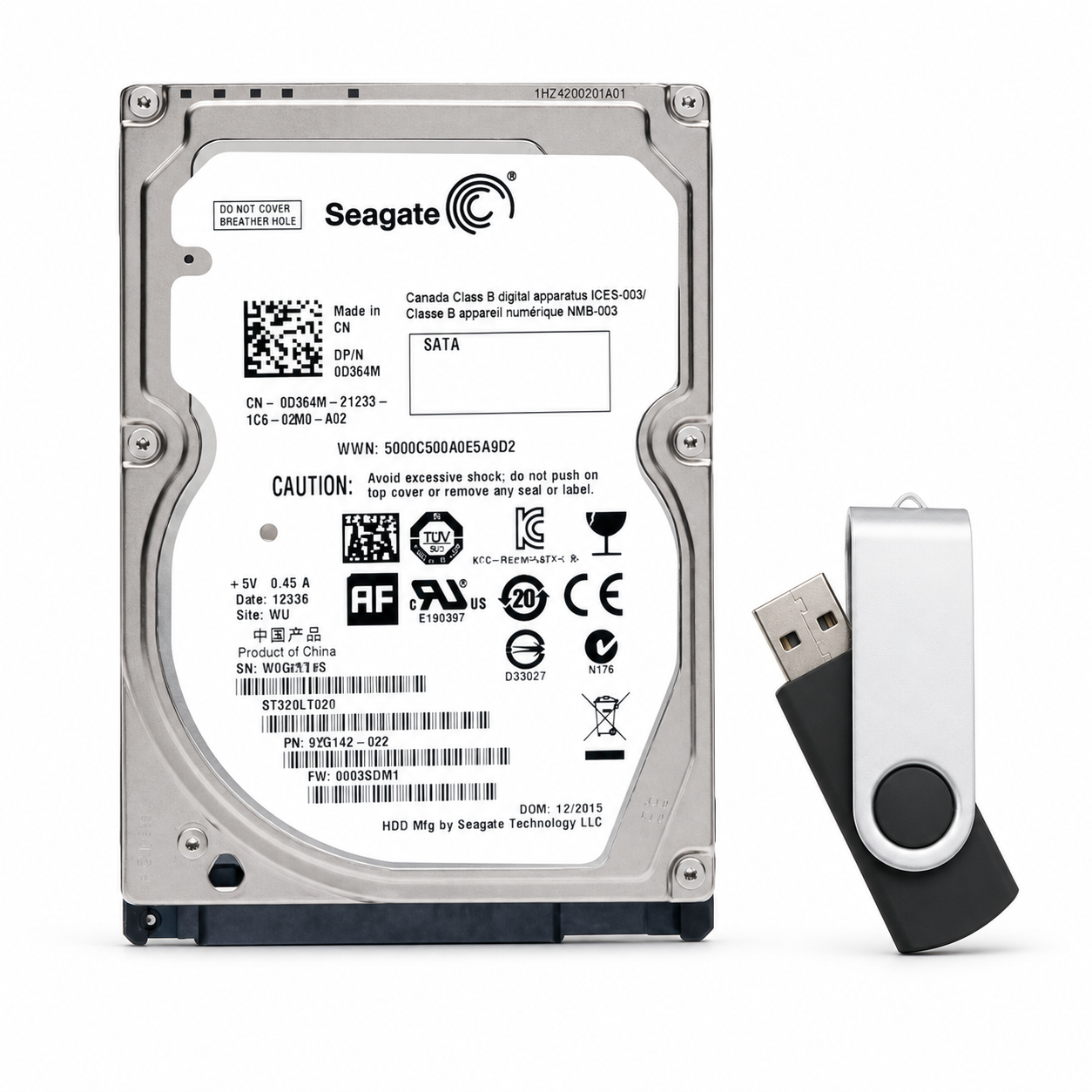
HP LaserJet M631 M632 M633 M634 M635 M636 M681 M682 HDD With Firmware 5851-6712 B5L29A
HP LaserJet Enterprise • Replacement Storage
Replace the drive.
Restore your workflow.
A 320GB replacement hard drive for supported HP LaserJet printers, supplied with a USB flash drive containing firmware for your selected printer series.
Select your printer series before adding to cart. Choose M631, M632, M633, M634, M635, M636, M681, or M682 so the included USB contains the appropriate firmware. Firmware is model-specific and must match the printer receiving the drive.
A practical replacement for failed printer storage.
A malfunctioning hard drive can interrupt startup and prevent a printer from loading its operating firmware. This replacement is intended for repairs where diagnosis has identified the installed HDD as the source of the problem.
The package pairs a 320GB hard drive with a USB flash drive containing the firmware file for the printer series selected when ordering. If firmware loading is required after installation, the included USB supports the printer's Preboot recovery process.
Firmware ready when needed.
The included USB is preloaded with the selected printer firmware. This supplies the installation file; the printer may still need to load that file and complete initialization before reaching its Ready state.
Repair with a clear starting point.
Match the replacement to your printer and follow the installation sequence below. A hard-drive replacement should follow diagnosis rather than be treated as a universal solution for every firmware or startup error.
Available printer-series selections.
| HP printer family | Select this variant |
|---|---|
| LaserJet Enterprise MFP M631 | M631 Series |
| LaserJet Enterprise MFP M632 | M632 Series |
| LaserJet Enterprise MFP M633 | M633 Series |
| LaserJet Enterprise MFP M634 | M634 Series |
| LaserJet Enterprise MFP M635 | M635 Series |
| LaserJet Enterprise MFP M636 | M636 Series |
| Color LaserJet Enterprise MFP M681 | M681 Series |
| Color LaserJet Enterprise MFP M682 | M682 Series |
Verify the exact printer configuration and installed storage before ordering. Some configurations use eMMC or have specific secure-storage requirements; the series name alone does not establish that every storage device is interchangeable.
Product details.
| Product type | Replacement printer hard drive with firmware USB |
|---|---|
| Capacity supplied | 320GB |
| Replacement reference | 5851-6712 |
| Related accessory reference | B5L29A identifies HP's 500GB secure hard-disk accessory. This listing supplies a 320GB drive. |
| Firmware delivery | USB flash drive preloaded with firmware for the selected printer series |
| Firmware file type | HP FutureSmart .bdl firmware bundle |
| Warranty | 30 days |
Included with your order.
- One 320GB replacement printer hard drive.
- One USB flash drive containing firmware for the printer series selected at checkout.
Installation note: B5L46-40014, B5L29-40014, and B5L29-60001 are not included. Retain these components from your existing installation for reuse, where applicable.
Installation & firmware loading.
Before you begin: Installation by an HP-authorized or qualified printer technician is recommended. If the printer is still accessible, back up required settings and stored information before replacing its drive.
Turn the printer off, wait at least 30 seconds, and disconnect power. Install the replacement HDD using the service instructions for your exact model, then refit all covers. Existing files and settings on the old drive do not automatically transfer to the replacement.
-
Confirm the correct firmware.
Use the included USB prepared for your selected printer series. If a fresh download is needed, visit HP's printer software and firmware page, select the exact printer model, download its supported firmware, and extract the package to locate the .bdl file. -
Prepare the USB if downloading a replacement file.
Place the extracted .bdl file in the USB drive's root directory, not inside a folder. Use a FAT32-formatted USB drive without a CD-ROM partition. Back up any USB files before formatting, since formatting erases them. -
Start the printer.
Reconnect power and turn the printer on. Allow it to initialize. If it reaches Ready normally, Preboot recovery is unnecessary. Use the following steps when firmware loading is required and the printer cannot reach Ready. -
Open the Preboot menu.
If the menu does not appear automatically, restart the printer and touch the center of the touchscreen when the HP logo and 1/8 startup indicator appear. Follow the model-specific service instructions if the startup display differs. -
Select the download menu.
Use the on-screen arrows and OK control to select Administrator, then Download. These may appear as 3 Administrator and 1 Download. -
Select the firmware USB.
Insert the USB into the printer's USB host port and select USB Thumbdrive. If the printer cannot find files, verify FAT32 formatting, root-directory placement, and the .bdl extension. Try another compatible USB drive if necessary. -
Choose the matching .bdl file.
Highlight the firmware file for the exact printer model and select OK. If several files appear, identify the correct one before proceeding. -
Allow the transfer and installation to finish.
Wait for the Complete message. Do not remove the USB or interrupt power while transfer is underway. Follow the displayed restart or Continue prompt; the subsequent initialization can take several minutes. Do not interrupt power during installation. -
Verify the result.
Once the printer reaches Ready, print a configuration page and confirm the installed firmware version. If loading fails, check the firmware file and USB drive before retrying. Contact support if the failure persists.
Understanding startup messages.
99.09.67 — Disk Not Bootable can occur when the replacement drive does not yet contain bootable firmware. In that situation, the correct firmware must be loaded before normal startup can resume.
Other 49.xx, 98.xx, or 99.xx messages can indicate different faults and should not automatically be dismissed as normal. Record the complete error code and follow the troubleshooting instructions for the exact printer model.
The drive. The firmware. A clear next step.
320GB Printer HDD + Firmware USB
Select your printer series • Confirm storage compatibility • Complete firmware initialization when required
HP, LaserJet, and FutureSmart are trademarks of HP. Part numbers identify replacement applications. Menu wording and installation requirements vary by model and firmware version.
Couldn't load pickup availability
Pickup available at WAREHOUSE
Usually ready in 5+ daysPairs well with
In stock! Ships within 5-7 business days.
100% Tested prior to shipment
Warranty Included (1 Year, 2 Year, and 3 Year Extensions available on all Printers)
Lifetime technical support
HP LaserJet M631 M632 M633 M634 M635 M636 M681 M682 HDD With Firmware 5851-6712 B5L29A
Please visit our FAQs page or email Sales@theprinterdepo.com with any questions you may have.
-
Shipping Information
Most orders ship within 48 hours of receipt.
-
Customer Support
Please reach out to us via email or chat box Monday-Friday 8AM-5PM CST.
-
FAQ’s
Please click "Quick Links" at the bottom of the page & open "FAQ's" for more information.
-
Technical Support
All of our products include lifetime technical support via email.
FAQs
Please read our FAQs page to find out more.
How much is shipping?
- Shipping is free on all items below 65lbs
- If you are purchasing in bulk & the total weight exceeds 65lbs then please reach out to us through the chat box or email sales@theprinterdepo.com for a custom quote.
- If the item exceeds 65lbs then you may be subject to freight charges.
Do you charge sales tax?
- We do not collect sales tax outside of the state of Texas. Therefore, you do not need to provide any proof of exemption unless your shipping/billing address is in Texas.
- If you are located in Texas & would like your account to be tax exempt then you must email Sales@theprinterdepo.com your Texas resale certificate or proof of exemption.
Do you offer "Blind Drop Shipping"?
- Yes, we offer "Blind Drop Shipping" & "Private labeling".
- Please email Sales@theprinterdepo.com for more details.
Do you offer any discounts?
- Yes, please sign up for our weekly newsletter for upcoming sales, discount codes, and product announcements.
- Wholesalers should email sales@theprinterdepo.com for a custom quote.
Do you accept "Purchase Orders"?
- Yes, please send your PO's to sales@theprinterdepo.com
- Credit card or Net 30 application must be on file in order for your purchase order to be processed.